

What’s supported
Supported actions
The Slack integration is available through two connectors:- Bot connector — provider name:
slack. This connector uses Slack bot token scopes. - User connector — provider name:
slackUserScope. This connector uses Slack user token scopes.
- Read Actions, including full historic backfill and incremental read.
- Write Actions.
- Subscribe Actions.
- Proxy Actions, using the base URL
https://slack.com/api.
Supported objects
The following matrix shows object and operation support for each Slack connector:- ✅ — supported.
- 🚫 — the connector supports the object, but not that operation. Write may mean both or one of create/update.
- empty — the object is not available through that connector.
Choose a connector
Use the Bot connector (slack) when your integration needs to operate with Slack bot token scopes.
This is the typical choice for integrations that act as an installed Slack app or bot.
Use the User connector (slackUserScope) when your integration needs to use Slack user token scopes
and perform actions on behalf of the authorizing Slack user.
Example integration
For an example manifest file of a Slack integration, visit our samples repo on Github. Use the sample corresponding to the connector you want to install:
The two manifests use different provider names.
Before you get started
To connect Slack with Ampersand, you will need a Slack Developer Account. Once your account is created, you’ll need to create an app in Slack, configure the Ampersand redirect URI within the app, and obtain the following credentials from your app:- Client ID
- Client Secret
- Bot scopes and/or User scopes
Create a Slack Account
Here’s how you can sign up for a Slack account:- Go to the Slack Sign Up page.
- Sign up using your preferred method and verify your email.
Creating a Slack App
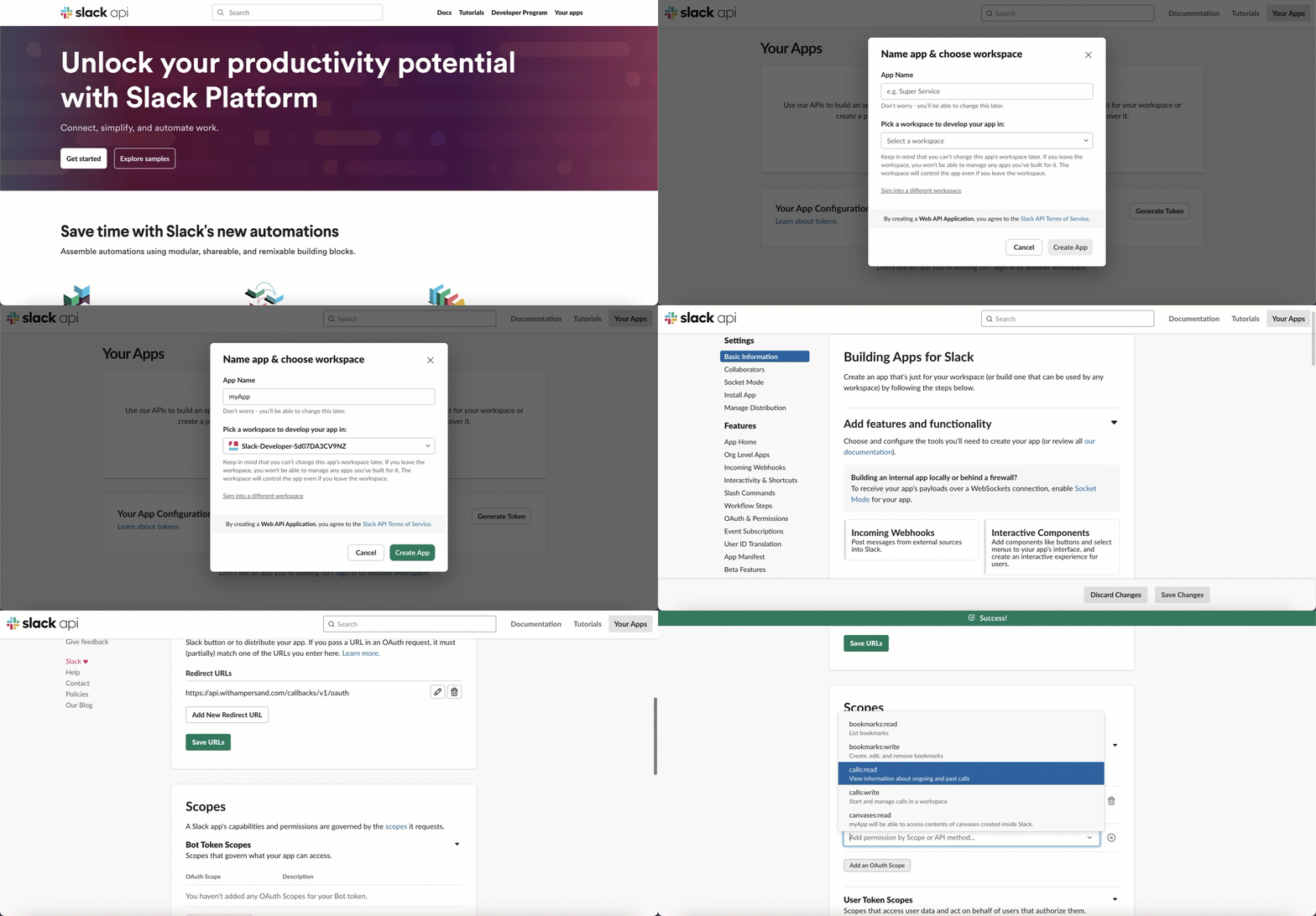
Follow the steps below to create a Slack app and add the Ampersand redirect URL.- Log in to your Slack Developer account.
- Click Your Apps.
- Click the Create New App button.
- In the Create a Slack App pop-up window, enter the App Name and select the Development Slack Workspace where you want to develop your app. Click Create App.
- In the left-hand sidebar, navigate to OAuth & Permissions.
-
In the Redirect URLs section, click Add a Redirect URL and enter the Ampersand redirect URL:
https://api.withampersand.com/callbacks/v1/oauth. - Click Add and then Save URLs.
-
In the Scopes section, add the necessary Bot Token Scopes/User Token Scopes for your app by clicking on Add an OAuth Scope and selecting the required scopes.
Add Your Slack App Info to Ampersand
- Log in to your Ampersand Dashboard.
-
Select the project where you want to create a Slack integration.

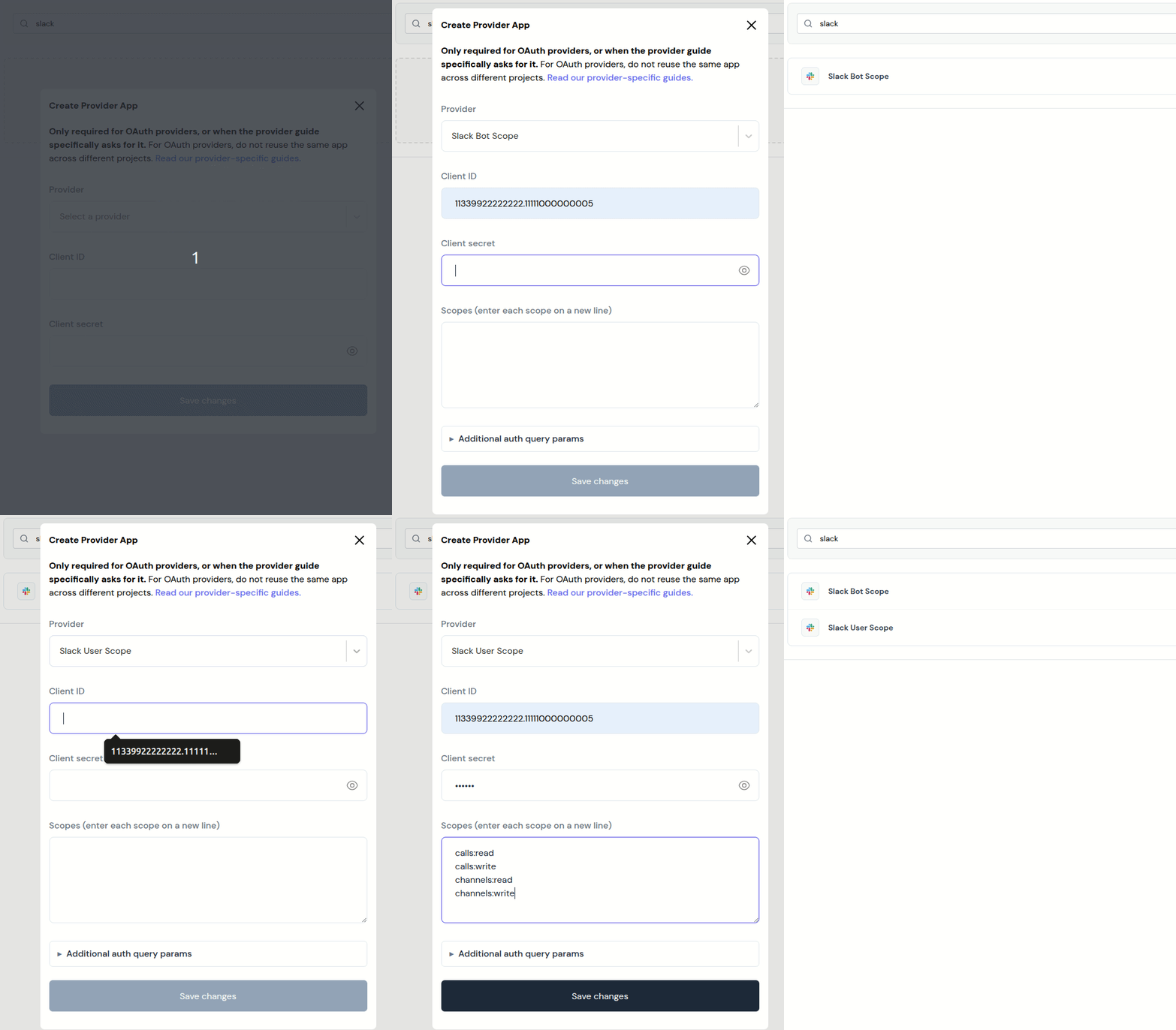
- Select Provider Apps.
- Select Slack Bot Scope or Slack User Scope from the Provider list.
- Enter the previously obtained Client ID in the Client ID field and the Client Secret in the Client Secret field.
-
Enter the bot scopes or user scopes set for your application in Slack.
- Click Save Changes.
Using the connector
To start integrating with Slack:- Create a manifest file like the example above.
- Deploy it using the amp CLI.
- If you are using Read Actions, create a destination.
- Embed the InstallIntegration UI component. The UI component will prompt the customer for their Slack authorization.
- Start using the connector.
- If your integration has Read Actions, you’ll start getting webhook messages.
- If your integration has Write Actions, you can start making API calls to our Write API.
- If your integration has Proxy Actions, you can start making Proxy API calls.